
LinearLayout 和 RelativeLayout 布局在同一个界面使用的示例和使用总结
LinearLayout 和 RelativeLayout 布局在同一个界面使用的示例和使用总结
在此之前我们先创一个新项目,之前展示的是默认会生成helloworld的项目模板,我现在创一个empty activity的模板,来学习一下如何手动创建activity。
在之前java目录下的包中,目前是没有活动的,所有右键他来手动创造一个empty activity,注意不要吧laucher和Gernerate勾选,可以一步一步手动完成构建。
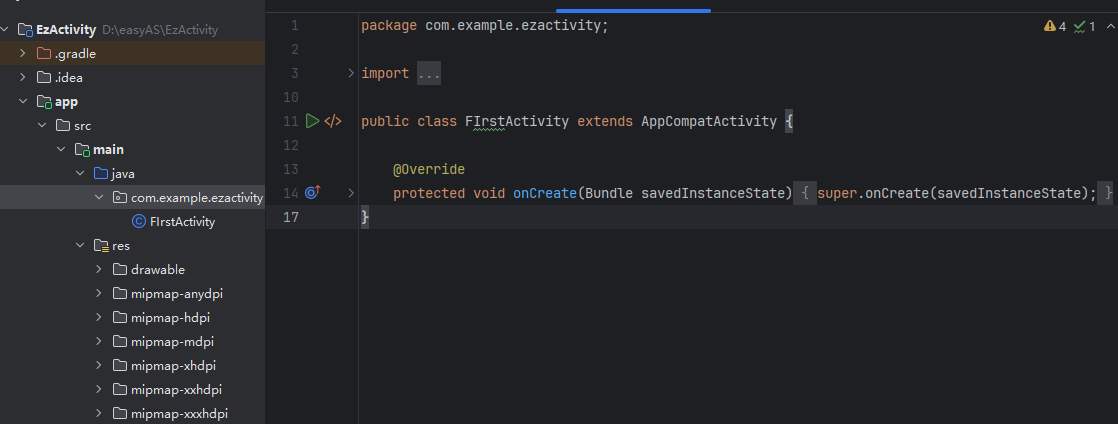
项目中的任何活动都会重写Activity的onCreate()方法,目前他已经自动帮我重写了。
之前的项目中,会自动帮我们生成layout布局文件,Android讲究的是逻辑和试图分离,所以最好每一个Act都可以对应一个布局,所以我手动搞一个布局文件。
右键res创建文件夹layout,再右键文件夹layout创造一个Layout resource file,根元素我选择线性布局。
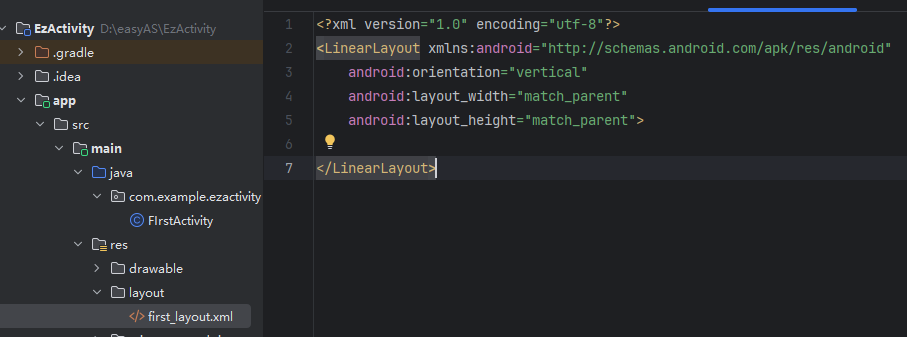
这样就是完成了,右上角小按钮可以显示这个布局的可视化。
接下来添加一个按钮进去,并且给这个元素加上一个id
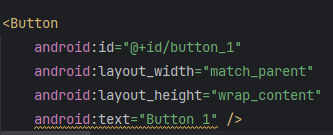
这样就编写了一个简单的布局,在FirsActivity中的onCreate中加上setContentView()方法并且传入布局的id,R.layout.first_layout就可以了,项目中添加的任何资源都会在R文件中生成一个相应的资源id,因此我们创建的布局也会在里面。
所有的活动都要在AndroidManifest.xml中注册才能生效,打开AndroidManifest.xml发现已经注册了
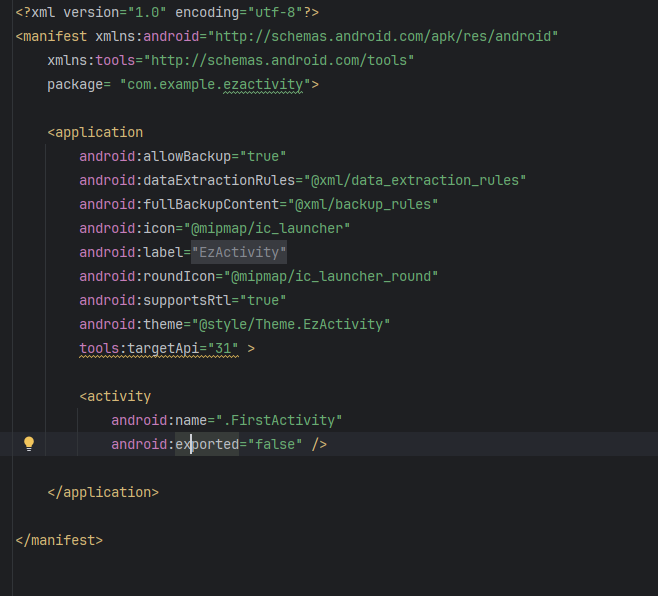
现在这个app没有主活动,所以现在我们在标签当中加入intent-filter标签,并在这个标签里面添加这两句声明就可以。
这样就全部弄好了,运行一下试试。
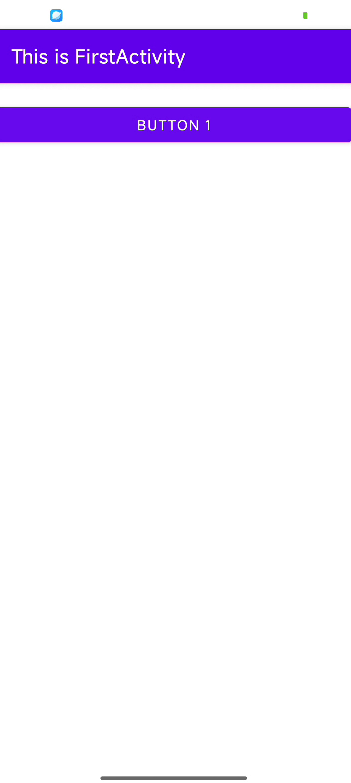
现在就知道如何创建一个活动了,我现在来做一个LinearLayout布局,同时试一下中间的属性
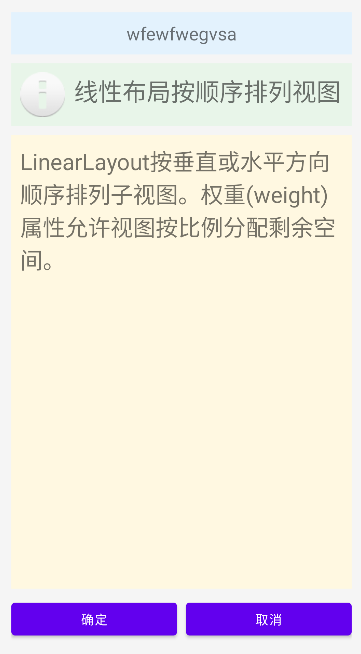
这是最后的样子,完整代码如下
<?xml version="1.0" encoding="utf-8"?>
<LinearLayout xmlns:android="http://schemas.android.com/apk/res/android"
    android:layout_width="match_parent"
    android:layout_height="match_parent"
    android:orientation="vertical"
    android:padding="16dp"
    android:background="#f5f5f5">
    <TextView
        android:layout_width="match_parent"
        android:layout_height="wrap_content"
        android:text="wfewfwegvsa"
        android:textSize="20sp"
        android:gravity="center"
        android:padding="10dp"
        android:background="#e3f2fd"/>

    <LinearLayout
        android:layout_width="match_parent"
        android:layout_height="wrap_content"
        android:orientation="horizontal"
        android:layout_marginTop="10dp"
        android:background="#e8f5e9"
        android:padding="10dp">

        <ImageView
            android:layout_width="50dp"
            android:layout_height="50dp"
            android:src="@android:drawable/ic_dialog_info"
            android:layout_marginEnd="10dp"/>

        <TextView
            android:layout_width="0dp"
            android:layout_height="wrap_content"
            android:layout_weight="1"
            android:text="线性布局按顺序排列视图"
            android:textSize="27sp"
            android:gravity="start"/>
    </LinearLayout>

    <TextView
        android:layout_width="match_parent"
        android:layout_height="0dp"
        android:layout_weight="1"
        android:text="LinearLayout按垂直或水平方向顺序排列子视图。权重(weight)属性允许视图按比例分配剩余空间。"
        android:textSize="25sp"
        android:background="#fff8e1"
        android:padding="10dp"
        android:layout_marginTop="10dp"/>

    <LinearLayout
        android:layout_width="match_parent"
        android:layout_height="wrap_content"
        android:orientation="horizontal"
        android:layout_marginTop="10dp">

        <Button
            android:layout_width="0dp"
            android:layout_weight="1"
            android:layout_height="wrap_content"
            android:text="确定"
            android:layout_marginEnd="5dp"/>

        <Button
            android:layout_width="0dp"
            android:layout_weight="1"
            android:layout_height="wrap_content"
            android:text="取消"
            android:layout_marginStart="5dp"/>
    </LinearLayout>
</LinearLayout>
可以看出Linearlayout还是很简单的,熟悉了一下嵌套LinearLayout以及权重
android:layout_width="0dp"
这是实现权重分配的前提。当宽度设为0dp时,控件会先根据内容计算最小宽度,然后将剩余空间按权重比例分配。
权重值决定了剩余空间的分配比例。两个按钮权重均为 1,因此会平均分配父布局的剩余水平空间,实现宽度相等的效果。
android:layout_weight="1"
权重值决定了剩余空间的分配比例。两个按钮权重均为 1,因此会平均分配父布局的剩余水平空间,实现宽度相等的效果。
好的接下来我会使用关系布局来再次实现他
<?xml version="1.0" encoding="utf-8"?>
<RelativeLayout xmlns:android="http://schemas.android.com/apk/res/android"
    android:layout_width="match_parent"
    android:layout_height="match_parent"
    android:padding="16dp"
    android:background="#f5f5f5">

    <!-- 标题 (水平居中) -->
    <TextView
        android:id="@+id/title"
        android:layout_width="match_parent"
        android:layout_height="wrap_content"
        android:text="RelativeLayout示例"
        android:textSize="20sp"
        android:gravity="center"
        android:padding="10dp"
        android:background="#e3f2fd"/>

    <!-- 图标 (在标题下方) -->
    <ImageView
        android:id="@+id/icon"
        android:layout_width="66dp"
        android:layout_height="79dp"
        android:layout_below="@id/title"
        android:layout_alignParentStart="true"
        android:layout_marginStart="0dp"
        android:layout_marginTop="10dp"
        android:background="#e8f5e9"
        android:padding="10dp"
        android:src="@android:drawable/ic_dialog_info" />

    <!-- 描述文本 (在标题下方,图标右侧) -->
    <TextView
        android:id="@+id/description"
        android:layout_width="345dp"
        android:layout_height="79dp"
        android:layout_below="@id/title"
        android:layout_marginTop="10dp"
        android:layout_toEndOf="@id/icon"
        android:background="#e8f5e9"
        android:gravity="start"
        android:padding="10dp"
        android:text="相对布局通过关系定位视图"
        android:textSize="16sp" />

    <!-- 长文本 (在描述下方) -->
    <TextView
        android:id="@+id/longText"
        android:layout_width="match_parent"
        android:layout_height="match_parent"
        android:layout_below="@id/description"
        android:layout_above="@+id/buttonContainer"
        android:text="RelativeLayout通过视图间的相对关系定位元素。可以指定视图相对于父容器或其他视图的位置。"
        android:textSize="14sp"
        android:background="#fff8e1"
        android:padding="10dp"
        android:layout_marginTop="10dp"/>

    <!-- 按钮容器 (底部对齐) -->
    <LinearLayout
        android:id="@+id/buttonContainer"
        android:layout_width="match_parent"
        android:layout_height="wrap_content"
        android:layout_alignParentBottom="true"
        android:orientation="horizontal">

        <Button
            android:layout_width="0dp"
            android:layout_weight="1"
            android:layout_height="wrap_content"
            android:text="确定"
            android:layout_marginStart="5dp"
            />

        <Button
            android:layout_width="0dp"
            android:layout_weight="1"
            android:layout_height="wrap_content"
            android:text="取消"
        android:layout_marginStart="5dp"/>
    </LinearLayout>
</RelativeLayout>
这是二者的不同点
| 特性 | LinearLayout | RelativeLayout |
|---|---|---|
| 核心概念 | 顺序排列(水平/垂直) | 相对位置(相对于父容器或其他视图) |
| 布局复杂度 | 简单直观 | 相对复杂,需要定义位置关系 |
| 视图定位 | 使用orientation和gravity控制 | 使用layout_above/below/toStartOf等 |
| 空间分配 | 通过layout_weight按比例分配剩余空间 | 无类似机制,需显式指定尺寸 |
| 嵌套需求 | 复杂布局需要多层嵌套 | 可以减少嵌套层次 |
| 性能 | 简单布局高效 | 复杂关系可能影响测量性能 |
| 典型应用场景 | 列表项、简单表单、等分空间布局 | 浮动元素、重叠视图、复杂定位 |
| 代码示例特点 | 使用嵌套LinearLayout实现行列结构 | 使用相对关系减少嵌套 |
| 控件间关系 | 隐式(通过顺序决定) | 显式(通过ID引用) |
| 居中实现 | gravity="center" | centerInParent或centerHorizontal等 |
个人使用下来的话LinearLayout的布局非常简单,权重更是非常方便的解决了占比的问题,关系布局定位更加复杂,可能可以实现更加丰富的界面。

openvela 操作系统专为 AIoT 领域量身定制,以轻量化、标准兼容、安全性和高度可扩展性为核心特点。openvela 以其卓越的技术优势,已成为众多物联网设备和 AI 硬件的技术首选,涵盖了智能手表、运动手环、智能音箱、耳机、智能家居设备以及机器人等多个领域。
更多推荐

 8
8 0
0- 0


 已为社区贡献3条内容

所有评论(0)